

I read in bed every night, usually for an hour before I turn out the light. For most of last year that hour was a small battle. Reading glasses on, brightness turned down, and my eyes still tired and scratchy by the time I closed the book. So when my old Kindle from 2015 finally stopped holding a charge, I did what I always do with tools that matter: I took my time and bought the Amazon Kindle Paperwhite. Ten months later, it is the device I reach for without thinking. This is the long report.
I have read on it in bed almost every night since, in my blue armchair on normal days, and on the back porch this summer. I have borrowed library books with it, bought a few, dropped it once, and taken it on two trips. This is not a spec sheet review. It is what ten months of nightly use taught me, including the parts I would change if I could.
The Quick Verdict
The most comfortable reading device I have owned in decades of reading at night. It disappeared into my routine within a week, which is the highest compliment I can give a piece of reading gear.
Amazon Check Today's Price →If bright screens tire your eyes at night, start here.
The 2024 Paperwhite is the reader I chose after my old Kindle died, and ten months later I still read in bed with it every night. Check today's price on Amazon, then read the full report below to see if it fits your routine.
Amazon Check Today's Price on Amazon →How I've Used It
I bought the Paperwhite in mid-December of last year, the 16GB model, and ordered a CoBak stand case two days later. The case arrived the same week, and the Kindle has lived in it ever since. The cover wakes the screen when I open it and puts it to sleep when I close it, and the back folds into a stand at one fixed angle. That angle is perfect on a table, a tray, or a counter. On a pillow, a blanket, or a lap it tips over, which I learned in the first week. It is a small annoyance, and it belongs to the case, not the Kindle.
The Kindle itself is the model with the 7-inch glare-free screen and no physical page-turn buttons. You turn pages by tapping the right side of the screen or swiping. I will come back to that, because it is the one thing I genuinely miss, and it is the reason I bought a second reader in March. But for the first two months I did not miss the buttons at all. I was too busy noticing how easy the screen was on my eyes.
One note on library books, because it is the question I hear most often from people my age. I borrow most of what I read through my public library's digital lending, and on the Paperwhite that works through Libby's Read with Kindle. You borrow the book in the Libby app, tap the button, and it lands on the Kindle. It returns itself when the loan ends. No cables, no computer, no fuss. I have done it dozens of times since December, and it has never once failed me.
What the Screen Does for Tired Eyes
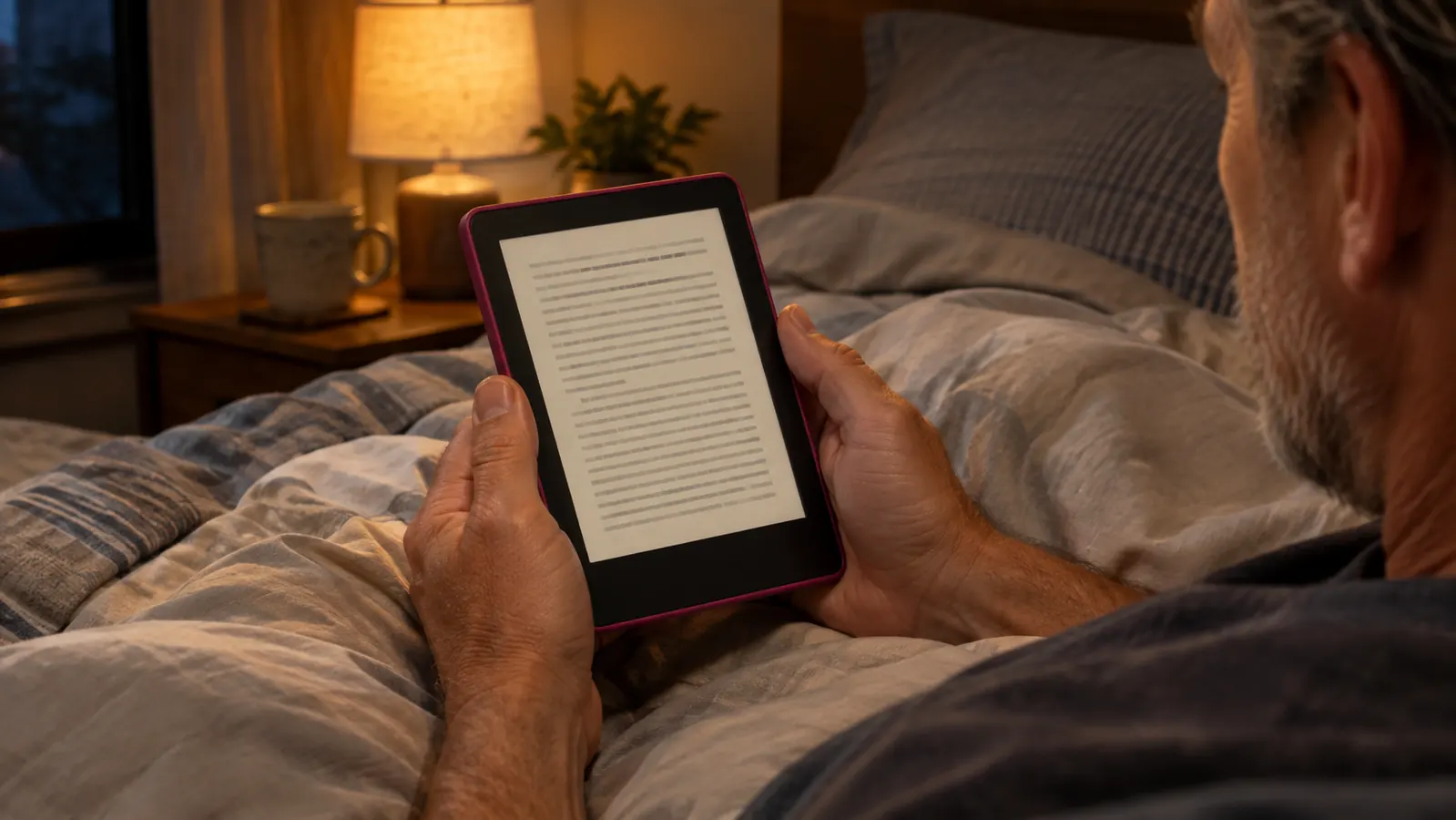
I wear reading glasses, and bright screens at night have bothered me for years. The Paperwhite screen is e-ink, which means it is not backlit like a phone or a tablet. Light shines onto the screen instead of out of it. To someone who spends her evenings on a tablet, it reads more like paper than any screen I have used. There is no glare, even in bright light, and the text stays sharp at any angle.
The warm light is the feature I did not expect to care about. You can shift the screen from cool white to a soft amber, and at night I keep mine fairly warm. It did not eliminate my eye strain completely, nothing does that. It took the edge off, and that was enough. I read for an hour and my eyes feel the way they do after reading a paper book, which is to say they do not feel like anything at all.
I do not use dark mode, the white text on a black screen. I tried it once and it felt wrong to me, like reading in a cave. The warm light on a normal background is what works for my eyes. The Kindle remembers the setting, so I adjusted it once in December and have not touched it since.
The Battery That Made Me Stop Thinking About Batteries
Amazon says the battery lasts weeks, and in my experience that is close to an understatement. I charge the Paperwhite roughly once a month. I read every night, usually for an hour and more on weekends, and I have never once seen the low battery warning appear at a bad moment. It basically never appears. My old Kindle from 2015 was the same way until the battery finally faded after a decade of use. I expect the same slow decline here, and I am at peace with that.
It charges over USB-C, which matters more than it sounds like. Every cable I own now is USB-C, so I do not have to hunt for a special cord or keep a drawer of obsolete chargers. A charge takes a couple of hours, and because it only happens once a month, I simply do not think about it. For a person who reads before sleep, that is the whole job.
I should add that I keep the Wi-Fi on, because library loans need it, and I still get weeks of reading between charges. The old Kindle taught me what a tired battery feels like, and the Paperwhite is nowhere near that yet. After ten months the battery life feels exactly as long as it did in December.
The Page-Turn Button Problem
Here is the honest part, and I want to be direct about it. The Paperwhite has no physical page-turn buttons. You tap or swipe. When my thumb arthritis flared last winter, tapping the screen started to hurt, and that is the entire reason I bought the Kobo Libra Colour in March. The Kobo has two page-turn buttons on one side, on the wider bezel, and on bad-thumb days I read the Kobo in the armchair. I do not read it in bed. The Paperwhite stays in bed, where it has always been.
I say all this so you understand the tradeoff clearly. The missing buttons are not a small thing to me on certain days. They are a genuine comfort issue. But they are also the only real complaint I have about the Paperwhite after ten months. On normal days, which is most days, I tap to turn the page and I do not think about it. The screen responds to the lightest tap. You do not have to press hard.
If your hands ache, the Kobo Libra Colour deserves a serious look, and I mean that. If your hands are fine, I would not let the missing buttons stop you from buying the Paperwhite. Most people adapt within a week. I did.
Before I bought the Paperwhite, I handled the Kobo Clara BW and the Kindle Colorsoft, and I thought about both carefully. The Clara has no page-turn buttons either. The Colorsoft adds color, which I do not need for the mysteries and history I read. Both are good devices. For a reader who wants a comfortable black-and-white page, the Paperwhite was the right call, and ten months have not changed my mind.
I read for an hour and my eyes feel the way they do after reading a paper book, which is to say they do not feel like anything at all.

Waterproof, Travel, and the One Drop
The Paperwhite is waterproof. I do not read in the bath, so I cannot give you a dramatic rescue story. What I can tell you is that I have carried it in a tote bag through two airport trips, read on the porch this summer with a sweating glass of iced tea beside me, and never once worried about any of it. That peace of mind is worth something, even if you never test the waterproofing yourself.
I did drop it once. It was in the CoBak case, and it fell off the kitchen counter onto the tile floor. I held my breath, picked it up, and it was completely fine. No scratch on the screen, nothing loose, no problem at all. I am not recommending you test this yourself, but it happened, and I am reporting it because it is the kind of thing I want to know before I buy a device.
Travel is where the Paperwhite earns its keep. It holds hundreds of books, it is light enough to carry in a tote, and because the battery lasts weeks I do not pack a charger for a long weekend. I flew twice this year and finished a mystery and a biography without ever thinking about power. That is the whole point of a dedicated reader, and this one does it better than anything I have owned.
This summer I read on the back porch most afternoons, and the glare-free screen is the reason. A tablet washes out in direct sun. The Paperwhite stays as readable outside as it is in bed. That is a feature I did not buy it for and now would not give up.
Small Things That Matter After Ten Months
Setup took about ten minutes. The Kindle connected to our Wi-Fi, I signed into my Amazon account, and my books were there waiting for me. The 16GB model holds more than I will ever read in a decade, so storage has never once crossed my mind. I chose the 16GB version without hesitation and have never wished for anything smaller.
The thing nobody tells you about e-ink is how still it is. There is no flicker, no glow, no glare. The page just sits there, like paper, and your eyes stop hunting for something to complain about. After ten months I still notice it, in the good way. I notice it most when I pick up my phone afterward and the bright screen makes me wince.
I also like what the Paperwhite does not do. It does not buzz with notifications. It does not show me headlines I did not ask for. It does one thing, reading, and it does it without asking for anything in return. For a retired librarian who spent 32 years surrounded by books, that focus feels like a luxury.
What I Liked
- Glare-free e-ink screen that reads like paper, even in bright light
- Adjustable warm light that made my nightly eye strain manageable
- Battery that lasts weeks on a single charge
- Library loans land on the device through Libby's Read with Kindle, no computer needed
- Waterproof, so it travels anywhere without worry
- USB-C charging, one less obsolete cord in the drawer
- Font size and layout are easy to adjust, so my reading glasses do less of the work
Where It Falls Short
- No physical page-turn buttons; on bad arthritis days I reach for the Kobo instead
- The stand case tips over on soft surfaces, so it does not work propped on a pillow
- It is a dedicated reader, so magazines, color, and video live on a separate device
- You need a case for a stand, and the case only folds to one fixed angle
Who This Is For
Buy the Paperwhite if you read in bed, if bright screens tire your eyes at night, if you borrow most of your books from the library, or if you travel and want a reader that never needs a charger on a short trip. It is also the right choice if you simply want a device that does one thing and does it well, without apps, notifications, or a screen that glows at you. That is the audience I belong to, and it is the reason I read on it every single night.
If you are older and your eyes tire at night the way mine do, this is the reader I would hand you first. If you are younger and read on your phone in bed, the Paperwhite will show you what you have been missing. It is not the cheapest reader and not the fanciest. It is the one that gets out of the way, and that is what matters.
Who Should Skip It
Skip the Paperwhite if your hands ache and you need physical page-turn buttons; the Kobo Libra Colour is the better reader for you, and I say that as someone who owns both. Skip it if you want color for comics or magazines, because a tablet does that job far better. And skip it if you want one device for everything, because the Paperwhite is deliberately a reader and nothing else. That focus is its strength. It is also the reason it is not for everyone.
I also tell people to skip it if they already own a tablet they are happy reading on. The Paperwhite is better for my eyes, but it is an extra device, and it only makes sense if you will actually use it. I use mine every night. If you are not sure you would, borrow a friend's for a week before you buy.
Ten months in, it is still the device I read in bed with every night.
If your nightly reading has become a battle with tired eyes, the 2024 Paperwhite is the most comfortable e-reader I have used in decades. Check today's price on Amazon and see if it fits the way you read.
Amazon Check Today's Price on Amazon →