

Let me start with an honest confession: my tablet is not my bedtime reader. I want to say that plainly, because this article is about reading on a tablet at night, and the truthful starting point is that a backlit screen will never be quite as easy on your eyes as e-ink. But most people do not want to be told to buy a second device. You already have a tablet, or you want one that does more than books, and you would like to read on it after dark without your eyes paying the price. That is a perfectly fair thing to want, and there is a great deal you can do about it before you ever think about giving up. And the fixes are mostly free, which is the other reason they are worth trying before you spend money on anything new.
I bought my Samsung Galaxy Tab A11+ in June, mostly for cookbooks, magazines, PDFs and picture-heavy books. It lives on the kitchen counter or the couch, and it does its best work in daylight, where a bright, sharp, full-color screen is exactly what you want. That same screen is what makes a tablet hard on your eyes at night. The good news is that most of the strain comes from settings and habits, not from the screen itself. I have spent time going through every adjustment this tablet offers, and the setup that makes it comfortable for a long afternoon of reading is the same setup I would hand to anyone who wants to read on a tablet after dark. It is not a complicated routine. It is a handful of settings that take a few minutes to set once, plus one habit that costs nothing. Here is the routine, step by step.
The Samsung tablet I set up for comfortable reading
The Samsung Galaxy Tab A11+ has an 11-inch screen that is sharp enough for magazines and cookbooks, expandable storage for a big library, and the eye comfort setting that does most of the heavy lifting for evening reading. It runs the Libby, Kindle and Kobo apps, so your library loans and your purchases all live in one place.
Amazon Check Today's Price on Amazon →Step 1: Turn on the eye comfort setting and schedule it
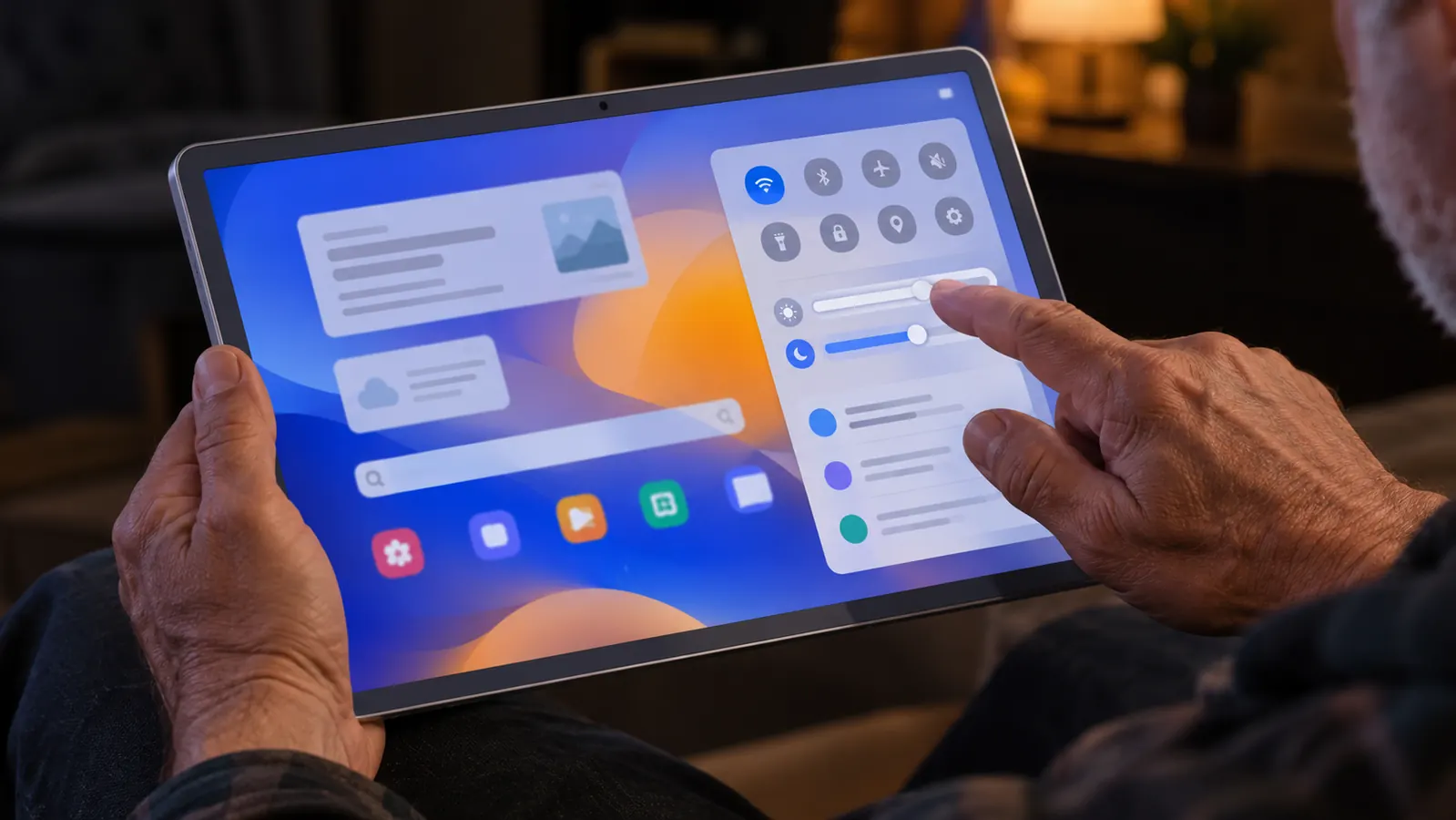
The first thing I did with the Samsung tablet was find the eye comfort setting and turn it on. It does what it sounds like: it cuts down the blue light the screen sends toward your eyes and shifts the whole display toward warmer tones. Warm light is easier on tired eyes in a dim room, and it also tells your body that it is not midday, which matters more than most people realize when they are trying to wind down with a book. Our bodies read light as a signal, and a screen full of blue light at ten at night tells the brain to stay alert even when the book is a sleepy mystery.
The key is to schedule it rather than switch it on by hand. A setting you have to remember is a setting you will forget on the exact night you need it most. I set mine to turn on automatically in the early evening and turn itself off in the morning, and now I never think about it. The tablet also lets you choose how strong the warmth is. A little warmth barely changes the colors. A lot of warmth makes the screen look like an old paper book under a reading lamp.
One caution: warmth changes how colors look, and that matters if you are reading a cookbook with food photography or a magazine with full-page ads. For a novel in the Kindle app, it makes no difference at all. For a cookbook, I keep the warmth modest during the day and let it go stronger in the evening, when I am less likely to be judging a photograph and more likely to just be reading.
Step 2: Set the brightness lower than you think you need
Brightness is the biggest single cause of night reading strain, and it is also the easiest to fix. The problem is not that the screen is bright. The problem is the gap between the screen and the room around it. In a dark room, a tablet at full brightness is like a flashlight held six inches from your face. Your pupils keep trying to adjust, and your eye muscles do the work that the tablet should be doing. It is the same reason a candle looks gentle and a car headlight looks harsh: the eye adjusts to the brightest thing in view.
My rule for the evening is simple: set the brightness by hand and keep it lower than feels natural. A good test is to glance at the screen and ask whether it looks like it is glowing. If it does, it is too bright. A screen that is set well should feel like a page of a book that happens to be lit from behind. On my tablet, that ends up being somewhere near the low end of the slider in a dim room.
This is also the step where you discover that no screen is comfortable in total darkness. Even a perfectly set tablet in a pitch-black bedroom will leave your eyes hunting for a reference point. That is not a failure of the tablet. It is how eyes work. So do not treat step two as the end of the job. The room around the tablet matters as much as the tablet itself, which is where the next steps come in.
Step 3: Switch your reading apps to dark mode
Dark mode flips the page from white with dark text to dark with light text, which means the screen is not flooding a dark room with white light. The Libby app, the Kindle app and the Kobo app all have a dark theme, and they all remember the setting between sessions. On the Samsung tablet, which runs all three, it takes about thirty seconds to switch each one and then you never touch it again. Dark mode will not fix a screen that is too bright, so do this after you have handled the brightness, not instead of it.
I tested it one afternoon with the curtains drawn and the lamp off, which is the closest I can get to a dark room during the day. The difference was obvious. With a white page, the whole room took on a glow and the screen felt aggressive. With dark mode, the screen receded and the words came forward. It felt like reading rather than being read to by a flashlight.
The one thing to know is that dark mode is for dark rooms. If you are reading in good daylight, a white background with black text is actually easier to read, because the contrast is higher and your eyes do not have to work to resolve light text on a dark page. So the rule I use is simple: dark page after dark, white page during the day. The apps make it a two-second change either way.
Step 4: Put a lamp in the room, behind the tablet
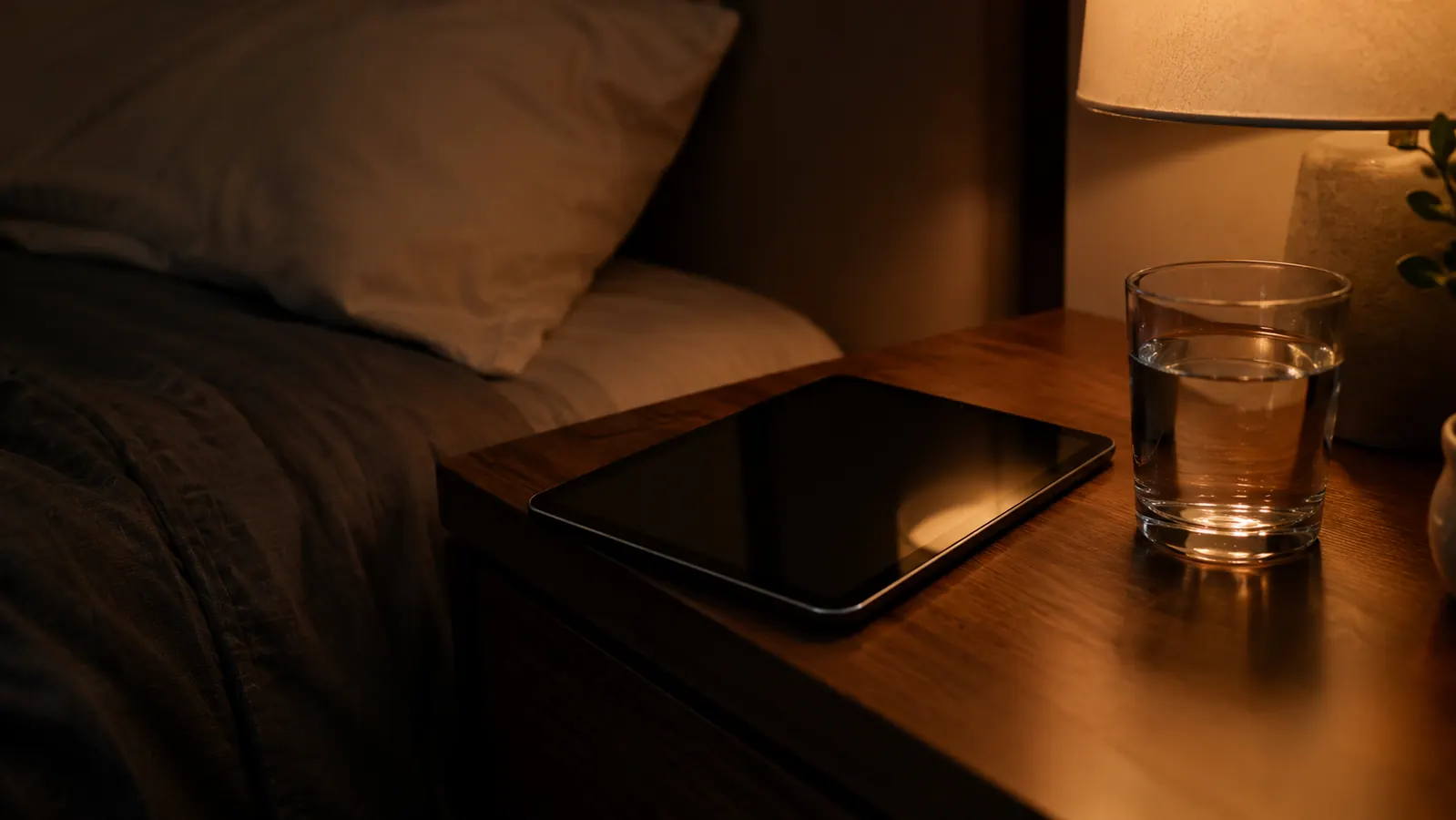
Here is the step that helped me the most, and it is not a setting at all. Put some light in the room, and put it behind the tablet rather than over your shoulder. A lamp on the table beside you or a floor lamp in the corner closes the gap between the brightness of the screen and the brightness of the room, and that gap is what makes your eyes work overtime. The right amount of room light makes the screen look softer without making it look dim.
The lamp does not need to be bright. It needs to be present. When I tested the tablet in a dim room, the lamp I normally use beside my chair was enough to change the whole feel of the screen. The tablet stopped looking like a light source and started looking like a page that happened to be lit from the same direction as everything else in the room.
Position matters. Put the lamp behind the tablet or off to the side, not behind your head where it will throw a glare across the screen, and not directly in your line of sight where it will fight the screen for your attention. If you read on a tablet in bed, the same idea applies with a bedside lamp, as long as the light lands on the room and not on the screen.
Step 5: Give your eyes a break, and know when the tablet is the wrong tool
The last step has nothing to do with the tablet and everything to do with how you use it. The old rule still works: every twenty minutes, look at something twenty feet away for twenty seconds. It sounds almost too simple to matter, and it does more for my eyes than any screen setting. I also make a point of blinking, because everyone stares when they read on a screen and staring dries the eyes out. I use a kitchen timer when I am deep in something long, and the reminder works just as well for a tablet as it does for a laptop.
Along with breaks, make the text bigger than you think you need. Small text makes you lean in and squint, and leaning in and squinting are what actually tire your eyes. If you catch yourself moving toward the screen, the font is too small. On a tablet you have no excuse to read tiny type, because a pinch and a swipe makes the words any size you want.
And now the honest part. If you have done all of this and your eyes still ache at night, the tablet is the wrong tool for that particular job. That is not a criticism of the tablet. It is the nature of a backlit screen, and no amount of settings will change it. This is exactly why I read in bed on my e-reader with a warm light, and keep the tablet for the daytime jobs it does so well. Know which tool does which job, and your eyes will thank you.
What Else Helps
A few smaller things that add up. Keep the screen clean. Fingerprints and smudges lower the contrast between the text and the background, and your eyes have to work harder to make out the words. A microfiber cloth takes ten seconds and makes a surprisingly large difference on a tablet that gets handled a lot.
Prop the tablet up so you are not holding it. I use a stand on the kitchen counter when I follow a recipe, and the same idea works anywhere. When the tablet sits at a comfortable angle, you are not hunching and your hands are free, and if your hands are anything like mine, that matters as much as the screen does. I wear reading glasses, and I have found that the tablet sits a little farther from my eyes than a book does, so I let the font size do the work instead of pushing my head toward the screen. A simple folding stand takes up almost no space when it is not in use, and it keeps the tablet at eye level.
And look for paper backgrounds in your reading apps. Many of them offer sepia or a warm paper tone instead of pure white, which is a middle ground between a white page and dark mode. For magazines and PDFs, where dark mode is not always an option, a warm paper background is often the most comfortable compromise. None of this is complicated. It is just a matter of setting the tablet up once and then forgetting about it.
The lamp did more for my eyes than any setting on the tablet.
Set up a tablet that's easier on your eyes
The Samsung Galaxy Tab A11+ gives you an 11-inch screen for color reading, 128GB of storage with room to expand, and the eye comfort setting that does the heavy lifting after dark. It runs the Libby, Kindle and Kobo apps, so your books are all in one place.
Amazon Check Today's Price on Amazon →