

If you read the way I do, two or three books a week, you know the exact moment a long session starts to cost you. The book is good, the light is right, and then your thumb begins to ache from tapping the screen to turn the page. For months I told myself it was just part of getting older. I switched hands. I propped the reader on my knee. I tried tapping more lightly. Nothing fixed it, because the problem was the tap itself.
Here is the plain truth: a tap is a small motion, but a book has hundreds of pages, and every page means one more tap. My right thumb, which has mild arthritis, wore out before my eyes did. That is why I bought the Kobo Libra Colour back in March, and it is why the physical page-turn buttons on it changed how long I can read in one sitting. This article is the practical version of what I figured out over the last seven months, step by step, so you can skip the experimenting I did.
The reader I reach for on bad-thumb days
The Kobo Libra Colour has two physical page-turn buttons on one side, and the screen rotates so you can hold it in either hand. If tapping a screen makes your thumb ache, this is the e-reader that keeps my reading sessions going.
Amazon Check Today's Price on Amazon →What Page-Turn Buttons Actually Change
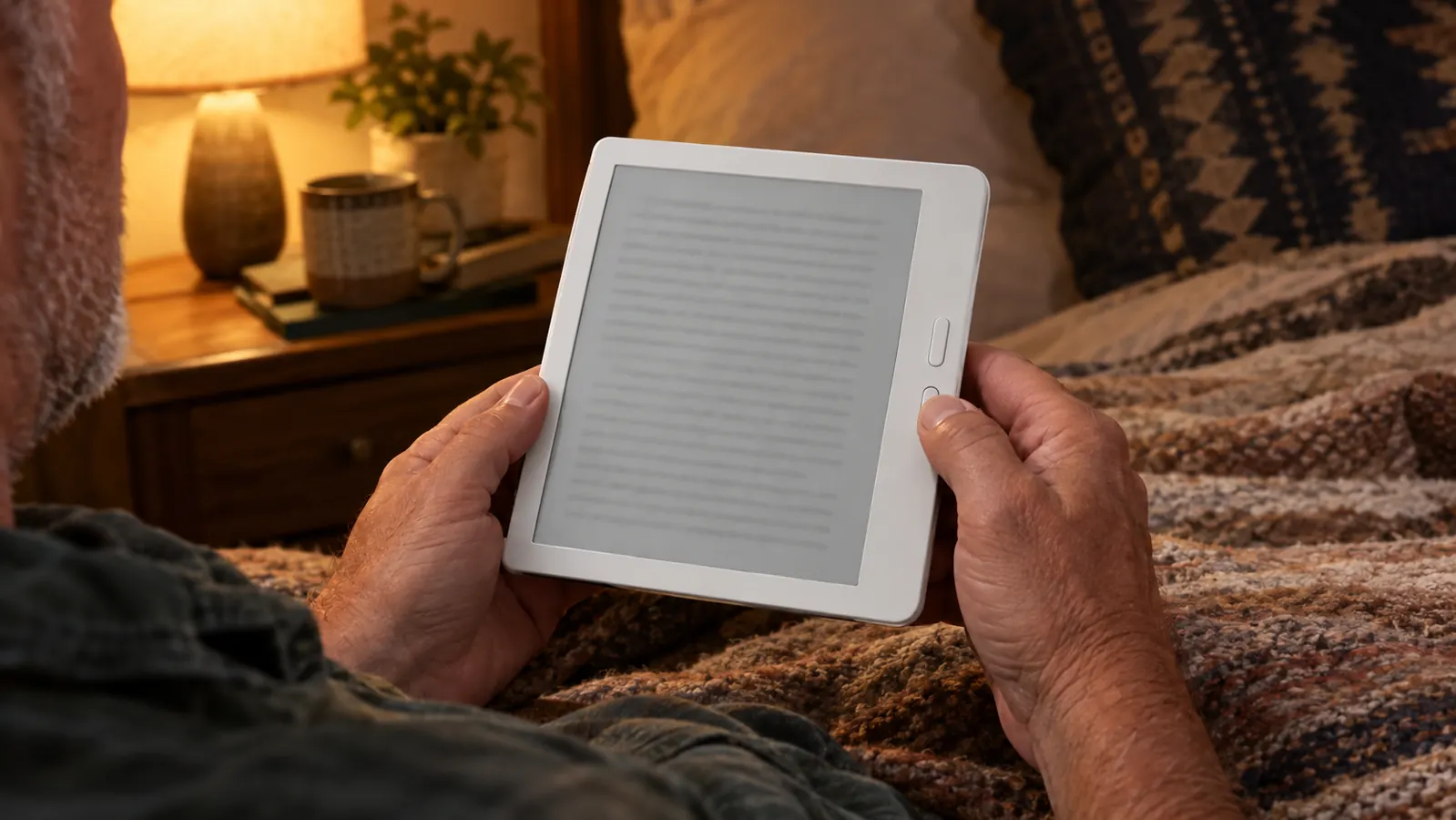
A screen tap asks your thumb to lift, travel, and strike the glass, thousands of times over a long book. A page-turn button asks for something smaller: your thumb rests on the button and gives a soft press. The difference sounds minor until you have done it for two hours. With the Kobo Libra Colour, the two buttons sit on the wider bezel on one side of the device, so there is a natural place for your thumb to rest without covering the words. When the page turns, the button gives a soft click, so you know it worked without looking.
I should be clear that this is not about speed. I do not read faster with buttons, and I do not claim the Kobo turns pages any quicker than a tap. What changes is the strain. The same book that left my thumb sore by page one hundred now leaves my hand feeling fine, and that is the whole reason I wrote this guide.
The other change is in your hand, not the screen. Because your thumb stays in one place, the rest of your hand can relax. With tapping, I found myself holding the reader more tightly, bracing for the next tap. With buttons, my grip stays loose, and a loose grip is what a sore thumb needs most.
Step 1: Pick the side that suits your good thumb
The Kobo Libra Colour rotates its screen, which means the buttons can sit on the right edge or the left edge depending on how you hold it. That is the feature I use more than any other. My right thumb is the one with arthritis, so on a bad-thumb day I hold the reader with the buttons on the left and turn pages with my left thumb. On days when my left hand is tired from holding the book, I flip the orientation and give it a turn.
To change the side, you do not need a menu. Rotate the reader in your hand and the screen follows. The bezel is wide enough on the button side that your thumb rests on it naturally, and the buttons sit where your thumb already lands instead of making you reach.
One note for anyone comparing readers: buttons on both sides sound better than buttons on one side, but in practice I have not missed them. The screen rotation on the Kobo Libra Colour means one set of buttons serves both hands, and the wide bezel gives your thumb somewhere to rest. I have used it this way for seven months and never wished for a second set.
Step 2: Rest your thumb on the button instead of tapping
The habit that helped me most was simple: stop lifting your thumb. When you tap a screen, your thumb leaves the surface, travels up, comes down, and strikes. Over a chapter that is a lot of small motions. With a button, your thumb can stay in contact the whole time. You press, the page turns, and your thumb stays put, ready for the next press.
I practiced this deliberately for the first week. Every time I caught myself lifting my thumb to tap the screen out of old habit, I put my thumb back on the button and pressed gently. It took about two evenings for the new motion to feel natural, and it is the motion that keeps me reading for an hour without the ache I used to get.
The buttons on the Kobo Libra Colour give a soft click when they register, which helps in a different way. You do not have to press hard enough to feel the page change; the click tells you it worked. That light pressure is easier on an arthritic joint than any tap.
Step 3: Keep your wrist straight and your forearm supported
Thumb pain is not only about the thumb. It gets worse when your wrist is bent and your forearm is doing extra work to hold the reader steady. The fix is positioning. I read in a blue armchair by the living-room window, and I rest my forearm on the arm of the chair so the reader sits at chest height. If your armchair does not have a useful arm, a folded throw pillow on your lap works just as well. The goal is to keep the reader at a height where your wrist is not bent down toward your lap or up toward your face. My wrist stays straight, and my thumb only has to press, not hold the weight.
In bed, the same rule applies, but the setup is trickier. I keep my Kobo for the armchair and use my Paperwhite in bed, because lying down makes it harder to keep a straight wrist. If you want to read lying down, prop your arm on a pillow beside you so the reader comes to you, instead of reaching up to it.
The lighter the reader, the easier this is. The Kobo Libra Colour is comfortable to hold bare, with no case, which is how I use mine. A case adds weight and changes where your fingers land. On the days when my thumb is at its worst, that difference in weight is the difference between one chapter and three.

Step 4: Alternate hands every chapter or two
Because the screen rotates, the Kobo Libra Colour does not force you to pick a side and stay there. On those days I switch hands about every chapter. The left thumb handles the pages for a while, then the right takes over. Sharing the work between two hands means neither one gets the whole book's worth of presses.
This matters more than it sounds. A three-hundred-page book with roughly two hundred and fifty page turns means a lot of presses for one thumb. Split that between two thumbs and you have cut the work each one does roughly in half. Some days I forget to switch until my hand reminds me, and I flip the orientation mid-chapter without losing my place.
Switching hands takes about two seconds. You turn the reader, the screen follows, and the buttons are now under the other thumb. It is the cheapest relief I have found, and it costs nothing.
Step 5: Set the light so you are not squinting
Thumb pain made me notice something else: I was reading in light that was too dim, leaning closer to the screen, and tensing my whole hand to hold the reader steady. The fix was the light. The Kobo Libra Colour has a built-in light you can adjust, with a dark mode option if you want it. In the evening I keep the brightness low, and when I can see the words comfortably, I do not grip the reader as tightly.
This is also where library loans helped me. Most of what I read comes through my public library's digital lending, and the Kobo has OverDrive and Libby built in, so holds land on the device directly. Fewer trips and no heavy hardbacks mean my hands get a break before I even sit down to read.
Give the light settings a fair trial over a few evenings. It took me a while to stop reaching for the brightness slider, but once I set it once, I stopped thinking about it. A comfortable reading position is the whole point, and light is part of that position.
What Else Helps
Page-turn buttons did the heavy lifting for my thumb, but a few other habits made the difference between a good reading week and a painful one. I stretch my thumb before I start: curl it in, hold, straighten it out, hold, a few times on each hand. I also take a micro-break at the end of every chapter, setting the reader down for thirty seconds while I flex my fingers.
The other thing that helped was admitting that I did not have to finish a book in one position. I read the Kobo in the armchair, my Paperwhite in bed, and my Scribe at the kitchen table when I want to take notes on a history book. Matching the device to the position keeps my hands happier than forcing one reader to do everything.
Finally, I keep the Kobo in the armchair and leave bedtime reading to my lighter everyday reader. Sitting upright in the armchair keeps my grip loose, and a loose grip is exactly what my thumb needs. The Paperwhite lives on the nightstand for bedtime reading, and the Kobo stays in the armchair. Having the right tool in the right spot means I never settle for a position that hurts.
If you borrow from the library the way I do, the Kobo makes that part painless. Holds show up on the device when they are ready, so there is no plugging in, no side-loading, no extra steps on my end. The fewer little tasks around reading, the more likely I am to actually sit down and read.
I bought the Kobo Libra Colour in March because tapping a screen hurt my thumb. Seven months later, the buttons are the reason I still reach for it on bad days.
None of this requires special gear beyond the reader itself. If you already own a Kobo Libra Colour, everything here is a setting or a habit. If you are shopping, the buttons are the feature to test in person: hold it, rest your thumb on the button, and turn a few pages. Your hand will tell you quickly whether it helps.
Start with the first step and go slowly. You do not have to change everything at once. Pick one habit, give it a week, and see how your thumb feels at the end of a long chapter. That is how I found what worked for me, and it is how you will find what works for you.
Give your thumb a rest without giving up reading
If tapping a screen makes your thumb ache by chapter three, the Kobo Libra Colour's page-turn buttons are worth a close look. The screen rotates for either hand, the buttons click softly, and the whole reader is light enough to hold for a long chapter.
Amazon Check Today's Price on Amazon →