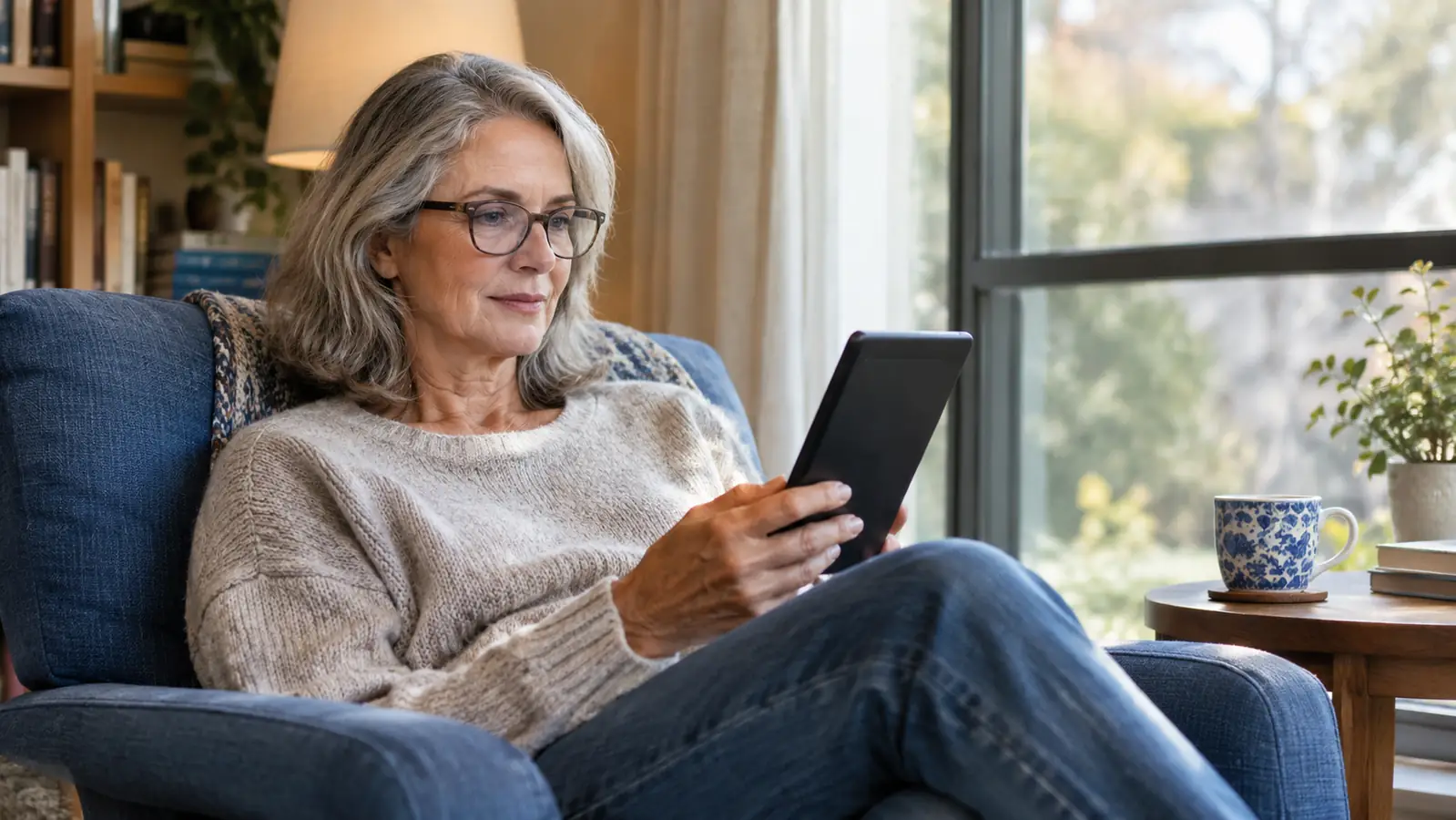
For years, my library books lived on a phone. I would borrow a mystery through Libby, then spend two weeks squinting at a bright little screen that made my eyes ache by chapter three. On a phone I also had to keep the screen bright enough to read, which only made the ache worse. I finished the books. I just did not enjoy the reading part. When my old Kindle from 2015 finally gave out, I decided my next reader was going to make library borrowing easier, not just cheaper.
Here is what surprised me: borrowing library books on a Kindle Paperwhite is not a workaround. It is an official feature. Your library lends through Libby, you tap Read with Kindle, Amazon delivers the book to your Paperwhite, and the book returns itself when it is due. I have been doing it for the better part of a year, and it has become the main way I read. These are the steps I would walk a friend through, in the order I actually do them.
A library card plus a Paperwhite means books that show up on their own
The Paperwhite is the reader I reach for every night. The 7-inch e-ink screen is easy on tired eyes, the warm light helps at bedtime, and library loans arrive through Libby and return themselves. If you read even a couple of books a month, this is the device that makes digital borrowing feel effortless.
Amazon Check Today's Price on Amazon →Step 1: Confirm your library lends through Libby
The whole system runs on Libby, the app from OverDrive. Most public libraries in the United States use it, and my branch in Columbus has been on it for years. If you are not sure about yours, open libbyapp.com and search for your library's name. If it comes up, you are set. If it does not, ask at the desk. The staff will know exactly what their library offers, and they can usually tell you when it is coming.
A few libraries use a different app with the same catalog, and the steps look similar but the buttons have different names. This article assumes Libby because it is what most people will run into and it is what I use. The general shape is the same everywhere: you borrow on your phone or computer, then you get the book onto your Kindle.
It is worth checking this first because the library's digital catalog is enormous and it is free. I read two or three books a week, mostly mysteries, historical fiction, and narrative nonfiction, and most of them come from the library. At that pace, borrowing is what keeps my reading life sustainable. The Paperwhite just makes the borrowing feel like owning.
Step 2: Get your library card and PIN ready
You need an active library card and the PIN that goes with it. Mine is the same card I have had for decades, the kind with a barcode on the back, and I still remember the number because I typed it so many times at the circulation desk. If you have not used yours in a while, check that it is not expired. Libraries vary, but many cards quietly lapse after a year or two of no use, and you will not know until you try to sign in.
If you do not have a card, most libraries let you apply online and give you a temporary number that works right away. You stop in later with an ID to pick up the physical card. And do not assume you are not eligible. Many libraries serve an entire county, not just the city they sit in. A two-minute check on the library's website can save you a lot of disappointment.
Write the card number and PIN somewhere you can find them. You type them into Libby once, but you will also need them if you ever sign in on a new device or reinstall the app. I keep mine in the notes app on my phone. Dale teases me about it, but it beats digging through a drawer every time I get a new gadget.
Step 3: Borrow the book and choose Read with Kindle
Open Libby, find your library, and sign in with your card number and PIN. Search for the book you want. If it is available, you will see a Borrow button. If it is checked out, you can place a hold, and Libby will email you when your copy is ready. The email reminder is the part that saves me, because I would forget to check the app otherwise. I usually keep two or three holds in the pipeline so there is always something new landing when I finish what I am reading.
When you tap Borrow, Libby asks how you want to read it. Choose “Read with Kindle.” That is the step that makes the whole thing work. Libby hands you over to Amazon, and you sign in with the Amazon account that is connected to your Paperwhite. If you have never connected the two, this is where it happens, and you will only have to do it once.
A screen on Amazon asks you to confirm which device gets the book. I send mine straight to the Paperwhite, and it usually appears within a minute or two, as long as the Kindle is connected to Wi-Fi. You can also send it to the Kindle app on your phone at the same time, and both copies stay in sync. That is handy if you want a chapter at lunch without carrying the Kindle.
One caution: the book will not appear on the Paperwhite if the device is in airplane mode. The loan has to download over Wi-Fi the first time. After that, you can turn airplane mode on and read anywhere. I mention this because I have had people tell me the book never arrived, and nine times out of ten, the Kindle was offline.
Step 4: Let the book land and make it comfortable
Once Amazon confirms the loan, the book appears on the Paperwhite like any other Kindle book. There is no separate download step. The first time I tried this, I borrowed a mystery at nine in the morning, and it was on the Paperwhite before I finished my coffee. If it does not show up right away, swipe down from the top of the screen, open Quick Settings, and tap Sync. The book usually arrives within a minute after that.
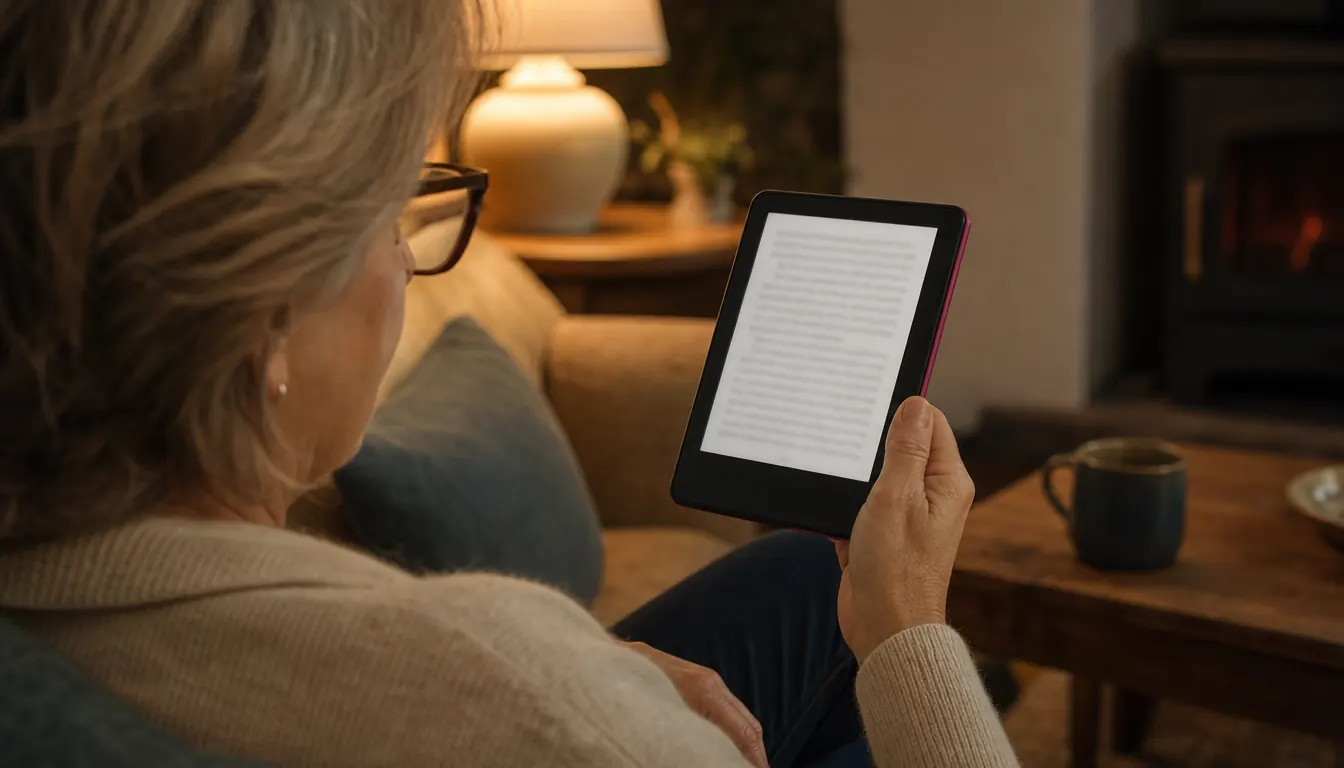
Then it is just reading. The warm light works exactly the same on a library book as on a book you bought. I turn the warmth up and the brightness down at night, and the screen is genuinely easy on my eyes. Font size, margins, and line spacing all carry over from your normal settings, so a library loan does not feel like a rental. It sits in your library, keeps your place, and syncs across your devices.
Two details surprise people. First, the book stays on the Kindle even when you are offline, so the back porch works fine. Second, your notes and highlights stay in your Kindle notebook even after the loan ends. I have gone back to a passage months after returning a book and found my margin notes still there. That alone makes the Paperwhite worth it for the way I read.
One more thing that took me a while to appreciate: a borrowed book behaves exactly like a bought one. You can change the font, look up words, highlight passages, and see your reading progress. The only visible difference is a small note that shows the loan end date when you open the book's details. I like that. It reminds me the book is a guest, and guests leave on time.
Step 5: Let it return itself, renew when needed, and use holds
The best part is that you cannot be late. When the loan period ends, the book simply disappears from your Kindle. No overdue notices, no fines, nothing to remember. If you are not done, open Libby before the due date and tap Renew. If no one else has a hold on the book, the renewal usually goes through right away.
You can also return a book early, and I do this more than I expected. I worked at a library for 32 years, so I have seen the hold lists. If I finish a book on a Tuesday and it is not due until Sunday, I tap Return in Libby and hand it back so the next person gets it sooner. Amazon also lets you return a loan from its content page, but Libby is the easier place to do it.
Holds are the other half of the system. When you place a hold, Libby emails you when the book is ready, and you usually have a couple of days to borrow it. If a hold lands at a bad time, you can suspend it, which keeps your place in line and delays the delivery until you are ready. I keep a running list of what is coming, and there is almost always something waiting when I finish the current book.
The only real limit is your library's catalog and its wait lists. A brand-new bestseller will often have a long line, but older books, midlist mysteries, and backlist nonfiction are usually available instantly. New releases are the exception, not the rule, so do not let a long wait list scare you off. I treat holds as the way to get the new stuff and browse the shelves for everything else. Between the two, I rarely go a day without something to read.
What Else Helps
A few small things make the routine easier once the basics are set up. The CoBak case on my Paperwhite folds into a stand at one fixed angle, which is perfect on the kitchen counter or a tray while I eat lunch. It tips over on soft surfaces, so I do not use the stand in bed. There I just hold the Kindle with the cover folded back. It is light enough to read one-handed for a long stretch, which matters to me because my right thumb has been temperamental this year.
The warm light is the setting I use more than any other. At night I turn the warmth up and the brightness down, and it is genuinely easier on my eyes than reading on a phone or a tablet. The Paperwhite has a dark mode, but I do not use it. Warm light is enough, and it makes the screen look like a page instead of a screen.
One thing I will not tell you to do: put the Kindle in airplane mode to keep a library book past its due date. It works, but it holds the book hostage from the next person on the list. I spent 32 years on the other side of that desk. If I am not done, I renew. If I cannot renew, I wait my turn again. The book will still be there.
It took me a while to get used to the idea that the phone is the control center and the Kindle is just the page. If you want to borrow a book, you do it on the phone. If you want to renew, you do it on the phone. The Kindle never needs to know about any of it until the book shows up. Once I stopped expecting the Kindle to do the borrowing, the whole system got simpler.
One small habit: I keep a collection on the Paperwhite called Library, and I add every loan to it when it arrives. It takes two taps, and it means I can see at a glance what is borrowed and what is due soon. When a book disappears from the collection, I know the loan ended, which is a handy little signal that I am free to start the next one.
Keep your library card number and PIN somewhere safe, and check your email for hold notifications. Libby will email you, but I also glance at the holds tab in the app once a week. That is the whole system. It looks like a lot of steps the first time, and then it becomes a habit you do not think about. And if you have a friend who is new to this, send them the steps. It is the kind of thing that takes ten minutes to learn and saves you years of buying books you could have borrowed.
I borrowed a mystery at nine in the morning, and it was on my Paperwhite before I finished my coffee.
If you read at night on a bright screen, this is the reader that fixes it
Library books arrive through Libby, return themselves, and read exactly like books you own. The 7-inch screen is glare-free, the warm light is kind to tired eyes, and the battery lasts for weeks. It is the closest thing to the library experience I grew up with, minus the late fees.
Amazon Check Today's Price on Amazon →